Within GRATIS, you can mark venues and venue groups as Do Not Use. When this status is applied, the venue or venue group will appear in red in the venue search results, making it easy for agents to avoid using it.
You can set Do Not Use either:
- Globally (for all clients) via Office Preferences, or
- For specific clients via the Client record.
A. Set a global Do Not Use status (Office Preferences)
Use this when a venue or venue group should not be used for any client.
- Open Office Preferences in GRATIS.
- Go to the Preferred Venues tab.
- Select the relevant venue or venue group.
- In the status options:
- Select Do Not Use.
- Set the Level to 10 (as shown in the original screenshot).
- Do not set a Preferred status.
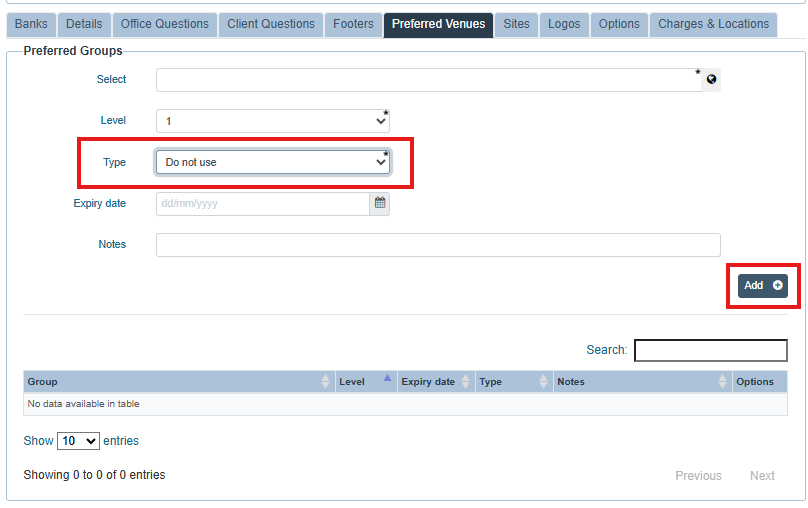
- Click the Add button on the right to apply the status.
- Repeat steps for any other venues or venue groups.
- When finished, click the green Save button at the top of the page.
Once saved, these venues/venue groups will display in red in venue search results for all agents.
B. Set Do Not Use for a specific client
Use this when a venue should be avoided only for certain clients (for example, if a client has requested not to use a particular hotel or chain).
- Open the Client module in GRATIS.
- Search for and open the relevant client record.
- Navigate to the area where you can manage client-specific venue preferences/restrictions.
- Select the relevant venue or venue group.
- In the status options:
- Select Do Not Use.
- Set the Level to 10.
- Do not set a Preferred status.
- Click the Add button to apply the status for this client.
- Repeat for any other venues or venue groups as needed.
- Save the client record.
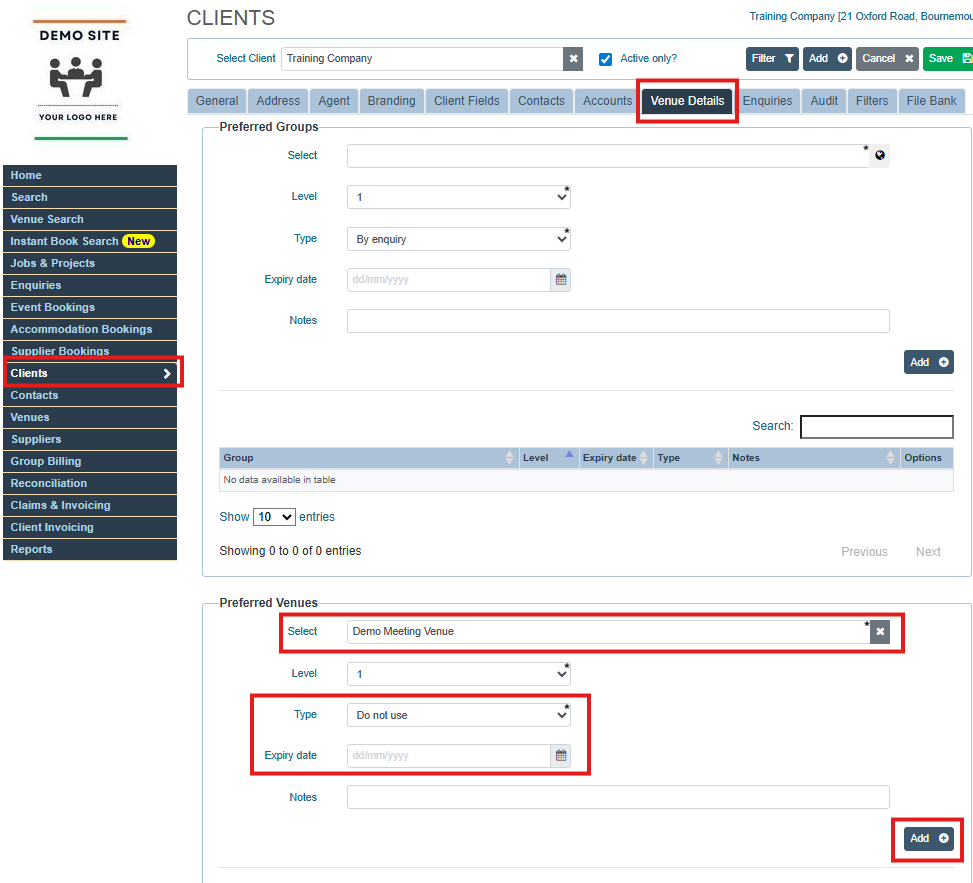
For this client, the venues/venue groups you marked will appear in red in venue search when agents work on their enquiries and bookings.
Was this article helpful?
That’s Great!
Thank you for your feedback
Sorry! We couldn't be helpful
Thank you for your feedback
Feedback sent
We appreciate your effort and will try to fix the article