If you try to view a client confirmation document and it does not open (and the only document available is the venue’s confirmation document), follow the steps below to resolve the issue.
- Within the Event Booking, click on the Agent tab.
- On the left-hand side, find Document Settings and click View.
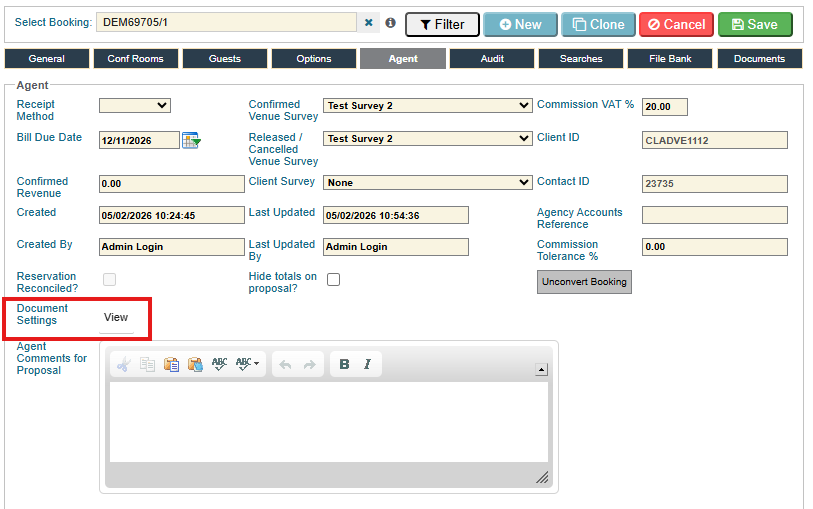
- A pop-up window titled Please select your documents will appear.
- In the Use column, make sure the "Default full" option is ticked.
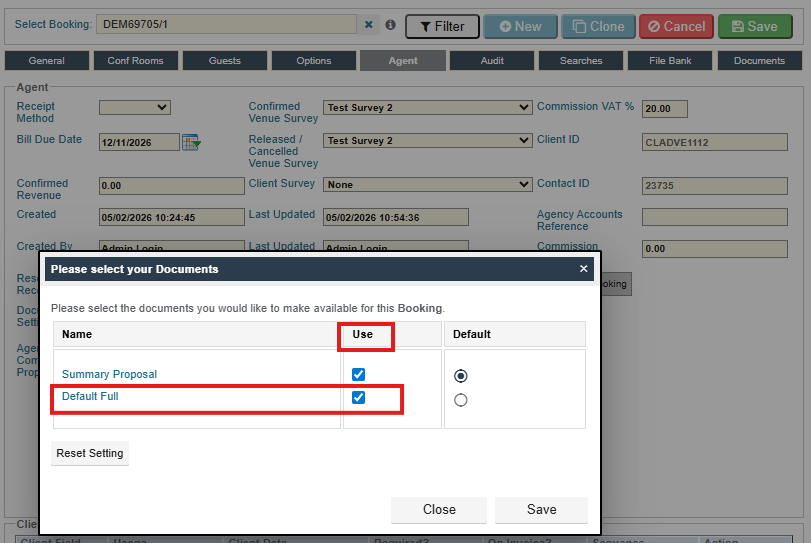
- Click Save, then close the pop-up window.
- Go back to the Documents tab, click on the client document you want to view, and it should now display correctly.
Why this happens
If Default full is not selected in your Document Settings, the system cannot use the correct client document template, so only the venue’s confirmation is generated. Ticking Default full ensures the client confirmation template is available and the document can be created and displayed.
Was this article helpful?
That’s Great!
Thank you for your feedback
Sorry! We couldn't be helpful
Thank you for your feedback
Feedback sent
We appreciate your effort and will try to fix the article