When you log in to GRATIS, your Home Screen can show you at‑a‑glance lists of:
- Client Activities
- Venue & Supplier Activities
- Online Venue Enquiry Responses
- Enquiry & Booking Summary (new enquiries, confirmed bookings, provisionals expiring, etc.
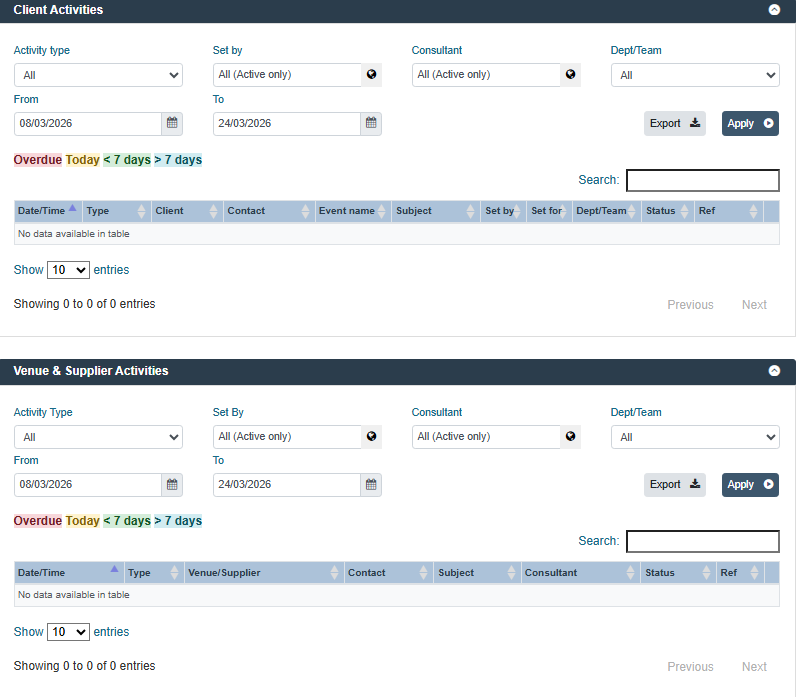
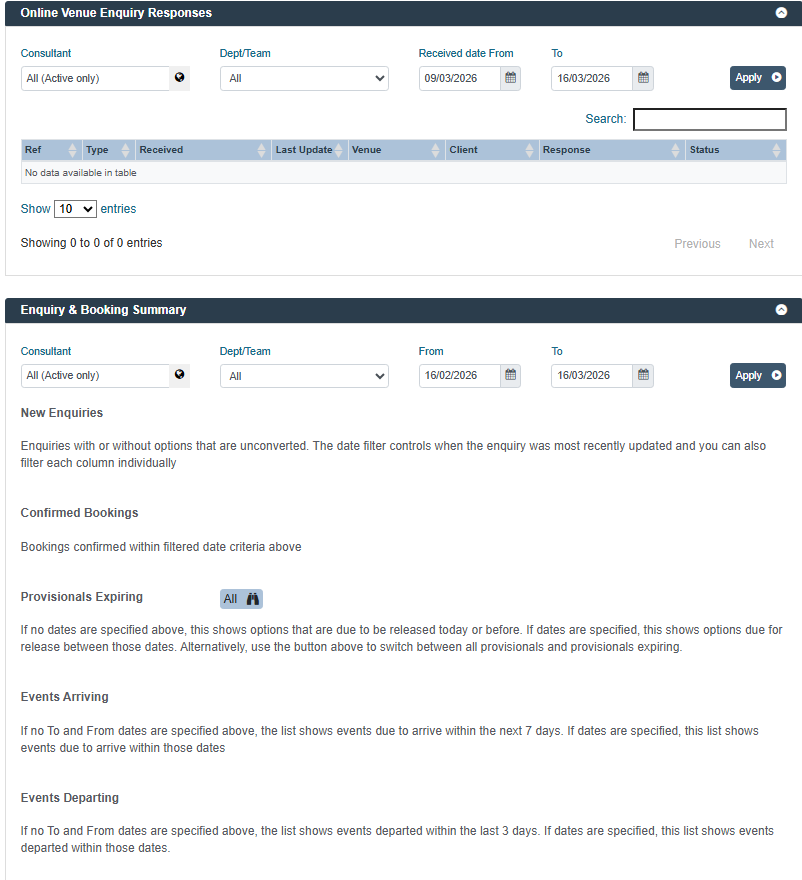
These panels all use the same idea: they’re just filtered lists. To make them default to you as the consultant every time you log in, you only need to set your Home Screen Settings once in your Employee Profile.
Step 1 – Open your Employee Profile
- In GRATIS, go to Setup > Employee Profiles (top‑right of the screen).
- In Select Employee, start typing your own name and choose your profile from the list.
- Click into your record.
The Employee Profiles module is where your login, permissions, and homepage options are managed. If you don’t see Setup > Employee Profiles, please ask your manager or supervisor (or whoever manages GRATIS permissions at your company) to update your Home Screen settings for you.
Step 2 – Go to the Agent tab
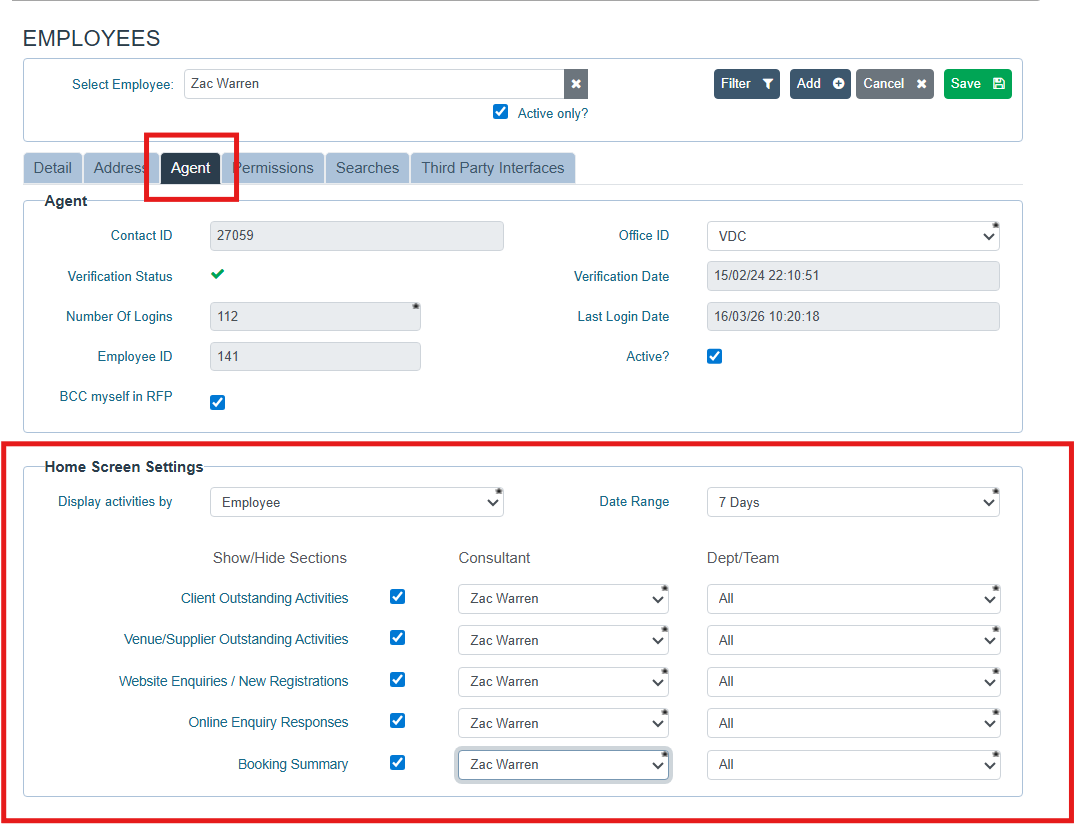
- On your profile, click the Agent tab.
- This tab includes your verification status, login history, and the settings that control what you see on the GRATIS Home Screen.
Look for the Home Screen Settings section (you may need to scroll).
Step 3 – Set your Home Screen defaults
Within Home Screen Settings, you’ll see configuration for the different Home Screen panels, including:
- Client Activities
- Venue/Supplier Outstanding Activities
- Online Venue Enquiry Responses
- Enquiry & Booking Summary
For each of these:
- Set Consultant to your own name.
- (Optional) Set Dept/Team if your office uses team filters.
- Choose a default Date Range (for example, today, the next 7 days, or a wider range).
These settings control the default values loaded into the Consultant/Dept/Date filters for those panels whenever you open the Home Screen.
Click Save / Update on your Employee Profile when you’re finished.
Step 4 – What you’ll see next time you log in
From your next login:
- Client Activities will automatically show activities where you are the consultant (based on your saved Home Screen Settings).
- Venue & Supplier Activities will default to your own venue/supplier activities.
- Online Venue Enquiry Responses will show responses for enquiries you’re responsible for.
- Enquiry & Booking Summary will default to bookings and enquiries under your name in the chosen date range.
You can still:
- Change the filters on the Home Screen at any time (e.g. switch Consultant to All or to a colleague to see a team view).
- Adjust your defaults again later by updating your Home Screen Settings in Employee Profiles > Agent.
Want more detail?
If you’d like a deeper tour of these areas, you can use the online help:
- Home Screen guide – explains each panel on the GRATIS homepage:
https://venuedirectory-help.freshdesk.com/support/solutions/articles/44001783029-home-screen - Employee Profiles module – how to manage user profiles and homepage options:
https://venuedirectory-help.freshdesk.com/support/solutions/articles/44001783032-employee-profiles-module
Was this article helpful?
That’s Great!
Thank you for your feedback
Sorry! We couldn't be helpful
Thank you for your feedback
Feedback sent
We appreciate your effort and will try to fix the article