This section explains how transaction fees work in the Client module > Accounts tab, including the difference between fixed and variable fees and how fee categories (C, R and O) affect what is charged on each booking.
TABLE OF CONTENTS
- Fixed vs ad hoc (variable) fees
- Fee types and categories
- Setting up a transaction fee on a client record
Fixed vs ad hoc (variable) fees
Fee built into Client record (fixed fee %)
If a fixed fee percentage is set on the client record, it will automatically pull through to every booking for that client and calculate the fee based on the total booking value. If the booking charges change, the fee will automatically update when you click Recalculate or Save.
You should not manually edit these auto-calculated fees, as this can cause issues later in the finance process. If you no longer want the fee on a particular booking, delete the line completely; once removed, it cannot be reinstated with its original auto-calculate logic.
Ad hoc fee (manual/variable fee)
You can add an ad hoc fee line at any time and free-type the value you wish to charge so that it appears on documentation and reports. This fee can be amended at any point during the booking process and finalised at reconciliation. The final saved fee will appear on the client invoice and in reports.
Fee types and categories
- Fee type 1 – Auto-calculated as a percentage of the total booking value.
- Fee type 2 – Auto-calculated as a percentage based on the category of the line item. For example, charge a percentage on all line items with category O, as “Other” items are usually non-commissionable.
- Fee type 3 – Fixed fee (a set amount).
Categories: C, R and O
- C = Conference – Delegate rates and anything related to a meeting or conference.
- R = Room – Bedroom charges that are not part of a 24-hour rate.
- O = Other – Items such as wine, equipment, flowers, etc.
Setting up a transaction fee on a client record
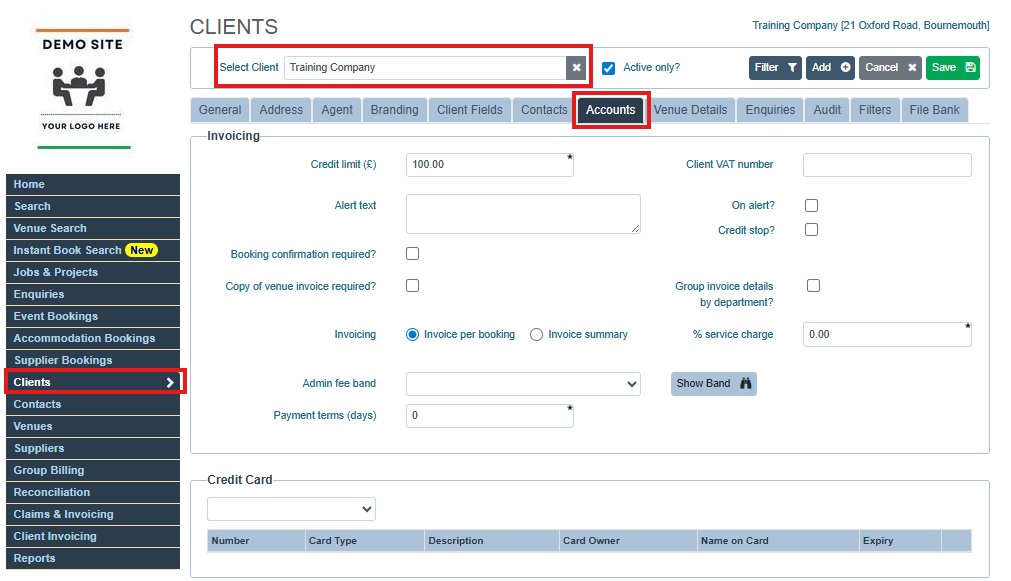
- Go to the Clients module and open the relevant client profile.
- Click the Accounts tab.
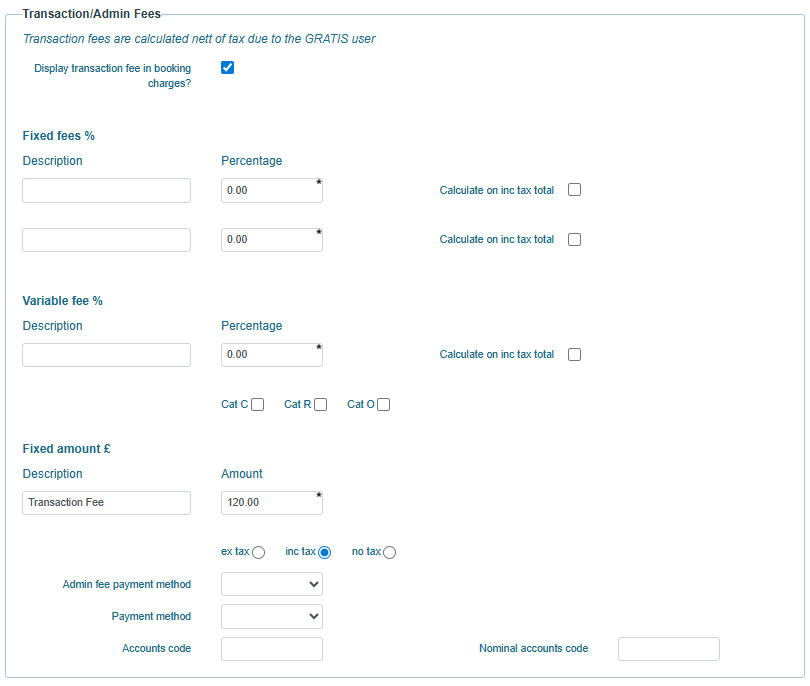
- Scroll to the Transaction/Admin Fees section.
- To set a Fixed fee, enter the percentage you want to charge; this fee will be automatically calculated on the total booking value for that client.
- You can also set a Fixed amount by adding a description to it and the total amount; select if you want the value to be calculated including tax, excluding tax or with no tax.
- To set a Variable fee, enter the percentage against each category you want to charge (e.g. A = Accommodation, R = Room, O = Other). The system will then calculate the fee per charge line based on its category.
- If you want the fee to show on client confirmations, tick Display transaction fee in booking charges.
- Click Save on the client record to apply the default fees to all new bookings for that client.
Was this article helpful?
That’s Great!
Thank you for your feedback
Sorry! We couldn't be helpful
Thank you for your feedback
Feedback sent
We appreciate your effort and will try to fix the article