When an enquiry comes into GRATIS from an EnCloud-linked agent, it is clearly indicated on the enquiry.
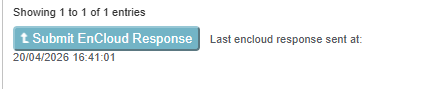
To streamline the workflow, there's a button on the Venues tab to send an EnCloud response back to the originating agent.
How it works
- Receive the EnCloud enquiry - The enquiry will show that it originated from an EnCloud-linked agent.
- Update your venue options - Add or adjust your provisional or released options as usual on the Venues tab.
- Send the EnCloud response - Click the EnCloud response button on the Venues tab. This sends your provisional/released options back to the source agent and updates their enquiry. An email is also sent to the consultant of the original enquiry to inform them of your response.
- View EnCloud responses in the option list
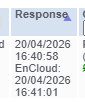
- Each option in the list will display its EnCloud response status and date once sent.
- When a venue responds via MyEventsChannel, you will see:
- The usual timestamp, and
- The EnCloud response date alongside it.
Important notes
- Do not convert to a booking for EnCloud responses.
- If you convert the enquiry to a booking, no response will be sent back to the originating agent.
- After clicking the EnCloud response button:
- It may take up to a minute to send the response.
- Reload the enquiry to see the updated EnCloud response information in the option list.
Was this article helpful?
That’s Great!
Thank you for your feedback
Sorry! We couldn't be helpful
Thank you for your feedback
Feedback sent
We appreciate your effort and will try to fix the article