We’ve enhanced the Promotion Code functionality for Corporate Rates to give both venues and bookers more flexibility and control.
TABLE OF CONTENTS
- Feature overview
- Venue setup: Adding a Promotion Code in My Events Channel
- Booker experience: Using a Promo/Corporate Code in My Events Portal
Feature overview
- Percentage-based and fixed Corporate Rates
Venues can set up Instant Book Promotions / Corporate Rates in My Events Channel using either:
- A fixed Corporate Rate, or
- A % discount.
- Promo/Corporate Code applied during booking
After running a standard venue search and selecting a venue, users can enter a Promo/Corporate Code on the Instant Book booking screen so the agreed fixed rate or % discount is applied directly to that booking.
Venue setup: Adding a Promotion Code in My Events Channel
To create or manage a Promotion/Corporate Code for Instant Book:
- Go to My Events Channel and open the Instant Book module.
- Select whether the promo code will be based on a % discount or a fixed Corporate Rate.
- Navigate to the Promo Code tab.
- Click Add Promocode.
- Complete the fields on screen:
- Code
The unique promotion/corporate code that will be given to the client.
- Promocode Valid Period
The calendar period during which the code itself can be used (i.e. can be entered and applied).
- Arrival Period
The event dates the code applies to (e.g. arrivals between specific dates).
- Discount Percentage
The percentage discount to apply when using a % discount promotion.
- Fixed Corporate Rate (Inc Tax)
If the promocode is set up as a fixed Corporate Rate, enter the agreed fixed rate (including tax) in the appropriate rate field instead of a percentage.
- Description
A short internal description of what this promo/corporate rate is for.
- Usage Limit
Choose whether the code can be:
- Multiple – used many times, or
- One Per User – limited to a single use per user.
- Apply to
Select which type of Instant Book rates the code affects:
- All
- Room Hire
- Delegate Rate
- Coverage
Specify what part of the booking the promotion applies to:
- Full Cost – applies to the total booking value
- Room/Delegate Cost Only – applies only to room or delegate line items
- Services Only – applies only to additional services
- Activate / Deactivate
Choose whether the promocode is currently active (available for use) or inactive (not usable in bookings).
- Save your changes to make the promo code available for Instant Book.
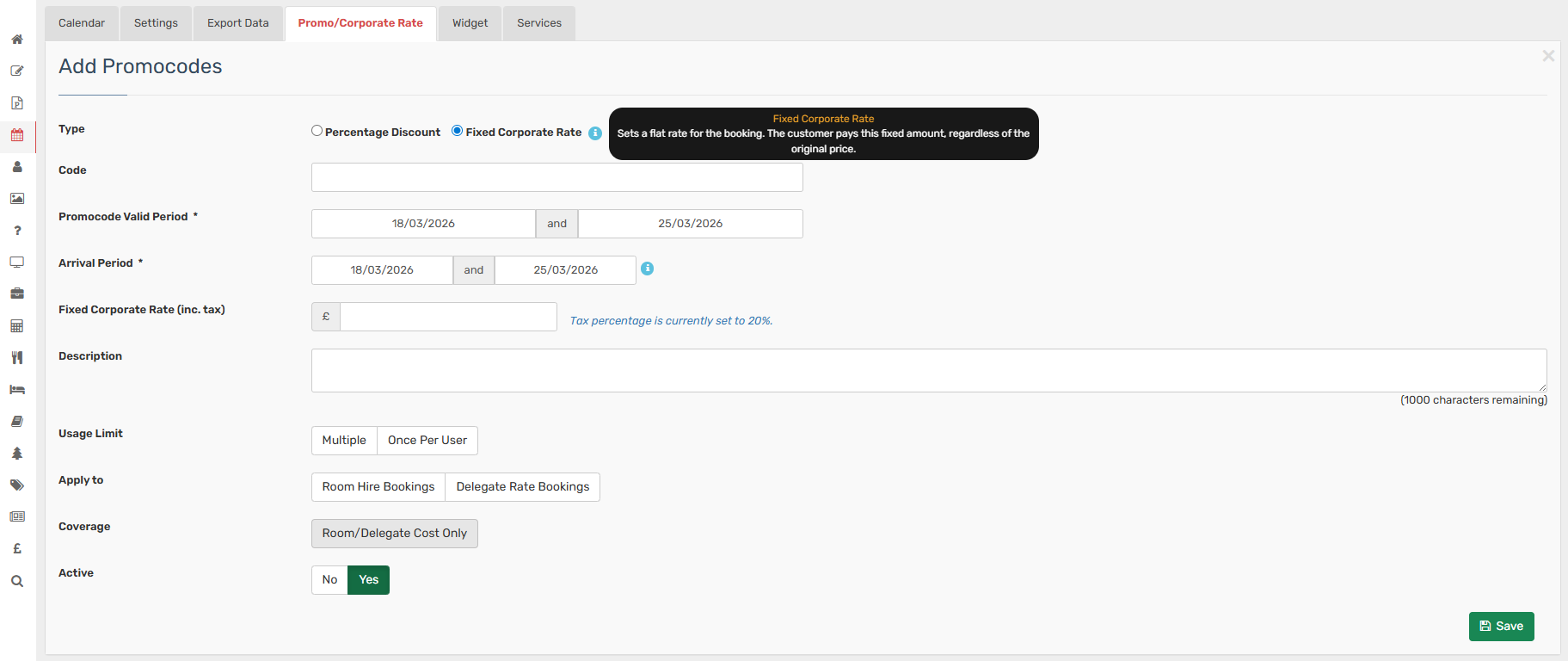
The examples below show how the Promo Code and the fixed Corporate Rate will appear on screen:
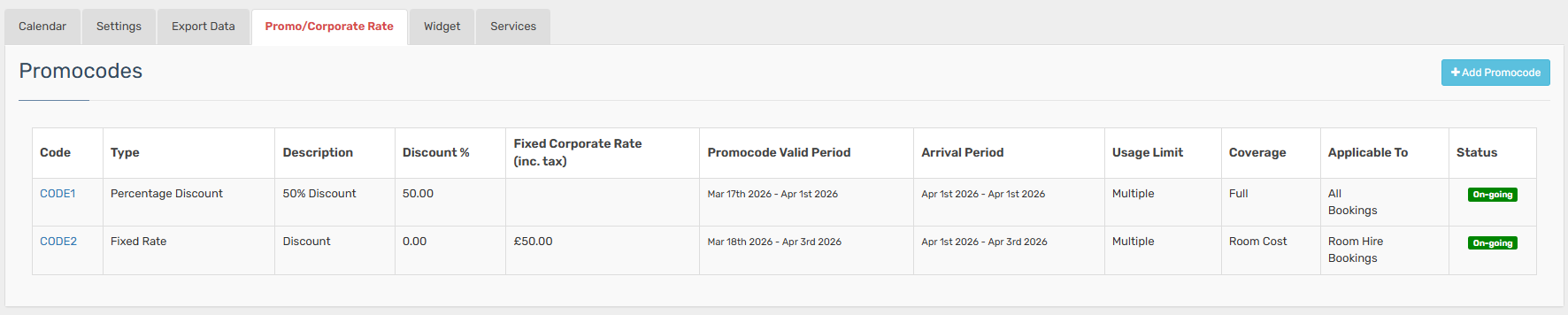
Booker experience: Using a Promo/Corporate Code in My Events Portal
On My Events Portal, users first perform a standard Venue Search using their usual criteria (location, dates, etc.), without entering a promo/corporate code.
Once they see the list of venues:
- The user selects their preferred venue.
- When they proceed to the Instant Book booking screen for that venue, they will see a Promo/Corporate Code field.
- The user enters their Promo/Corporate Code there so it can be applied to their Instant Book booking.
The promotion (fixed Corporate Rate or % discount) will then be applied to the Instant Book booking according to how the venue has configured the code (coverage, usage limits, etc.).
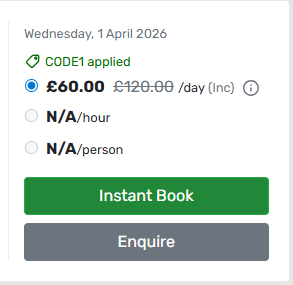
- Example of the percentage discount Promo Code usage

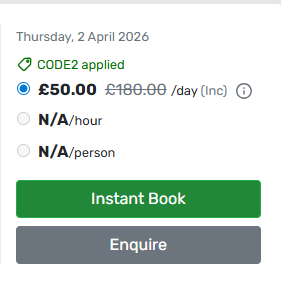
- Example of the fixed rate discount usage

Was this article helpful?
That’s Great!
Thank you for your feedback
Sorry! We couldn't be helpful
Thank you for your feedback
Feedback sent
We appreciate your effort and will try to fix the article